Extract products data from Flipkart with Pandas, Selenium, BeautifulSoup4, and CSV.
These days, the Internet is submerged with a huge amount of data associated to what we had one decade ago. As per Forbes, the data we yield every day is mind-boggling! You can have 2.5 quintillion bytes of data produced daily at present pace, and it has become possible due to Internet of Things (IoT) devices. Accessing this information, either in form of video, text, audio, images, or other formats, the majority of businesses depend seriously on data for beating their competitors as well as succeed in the business. Inappropriately, the majority of data is not open. The majority of websites do not offer the option of saving data that they show on their sites. That is where Software or Web Scraping tools come to scrape data from different websites.
What is Web Scraping?
Web Scraping is a procedure of auto downloading the data shown on the site using a few computer programs. A data scraping tool could scrape different pages from the website and automate a tedious job of manually copy and paste the data shown. Web Scraping is very important as despite the industries, the web has information, which can offer actionable businesses insights to get a benefit over your competitors.
Steps Associated with Web Scraping
To fetch data through Web Scraping with Python, we require to go through these steps:
- Get the URL, which you wish to extract.Checking the Page.
- Find data you need to scrape.
- Write a code.
- Run a code & scrape data.
- Lastly, store data in the necessary format
Packages Utilized for Web Scraping
We’ll utilize the given Python packages:
Pandas: Pandas is the library utilized for data analysis and manipulation. This is used for storing data in desired formats.
BeautifulSoup4: BeautifulSoup4 is a Python web scraping library utilized to parse HTML documents. This makes parse trees, which are useful in scraping tags from HTML strings.
Selenium: Selenium is the tool specially designed to assist you in running automated tests of web applications. Though this is not its key objective, Selenium is used in Python also for data scraping as it could access JavaScript-rendered content (whereas regular extraction tools like BeautifulSoup can’t do it). We’ll utilize Selenium for downloading HTML-based content from Flipkart as well as see in the interactive way what’s taking place.
CSV: A CSV module implements different classes for reading and writing tabular information in the CSV format.
Project Demonstration
Import Libraries
Let’s begin with installing the necessary packages.
import csv
from bs4 import BeautifulSoup
from selenium import webdriver
import pandas as pd
Starting the WebDriver
We start by firstly making a Webdriver object by importing a webdriver class from the docs as well as we can utilize this object for doing any operation(s) required. For instance, we have made a Chrome object here.
# Creating an instance of webdriver for google chrome
driver = webdriver.Chrome()
We start by firstly making a Webdriver object by importing a webdriver class from the docs as well as we can utilize this object for doing any operation(s) required. For instance, we have made a Chrome object here.
# Using webdriver we'll now open the flipkart website in chrome
url = 'https://flipkart.com'
# We;ll use the get method of driver and pass in the URL
driver.get(url)
Now, you can get some ways we can organize a product search:
The initial way is automating the browser through finding input elements and insert the text as well as hit ‘enter’ switch on a keyboard. The image here shows it:
Although this type of automation is needless and it makes the potential of program failure. So, the rule for automation is automate what is absolutely necessary when doing Web Scraping.
Now, search the inputs inside a search area as well as press enter. You’ll see that a search term has been entrenched into a URL site. Currently, we can utilize this pattern for creating a function, which will create the required URL for the driver to recover. It would be much efficient in long term as well as less prone for the program failure. Just see the image given below:
Now, let’s copy the pattern and make a function, which will insert search terms using the string formatting.
def get_url(search_item):
    '''
    This function fetches the URL of the item that you want to search
    '''
    template = 'https://www.flipkart.com/search?q={}&as=on&as-show=on&otracker=AS_Query_HistoryAutoSuggest_1_4_na_na_na&otracker1=AS_Query_HistoryAutoSuggest_1_4_na_na_na&as-pos=1&as-type=HISTORY&suggestionId=mobile+phones&requestId=e625b409-ca2a-456a-b53c-0fdb7618b658&as-backfill=on'
    # We'are replacing every space with '+' to adhere with the pattern
    search_item = search_item.replace(" ","+")
    return template.format(search_item)
Currently, we have the function, which will produce a URL depending on a search term that we offer.
# Checking whether the function is working properly or not
url = get_url('mobile phones')
print(url)
https://www.flipkart.com/search?q=mobile+phones&as=on&as-show=on&otracker=AS_Query_HistoryAutoSuggest_1_4_na_na_na&otracker1=AS_Query_HistoryAutoSuggest_1_4_na_na_na&as-pos=1&as-type=HISTORY&suggestionId=mobile+phones&requestId=e625b409-ca2a-456a-b
A function produces similar results like before.
Scraping the Collection
Now, we will scrape the webpage content from which we wish to scrape data.
To perform that, we require to make a BeautifulSoup object that will parse HTML content from a page source.
Making a soup object with driver.page_source for retrieving HTML text as well as then we’ll utilize a default HTML parser for parsing the HTML.
# Creating a soup object using driver.page_source to retreive the HTML text and then we'll use the default html parser to parse
# the HTML.
soup = BeautifulSoup(driver.page_source, 'html.parser')
Now as we have recognized that the given car or record specified by a box having all the details that we require for the mobile phone. Therefore, let’s discover tags for boxes or cards that have data we wish to scrape.
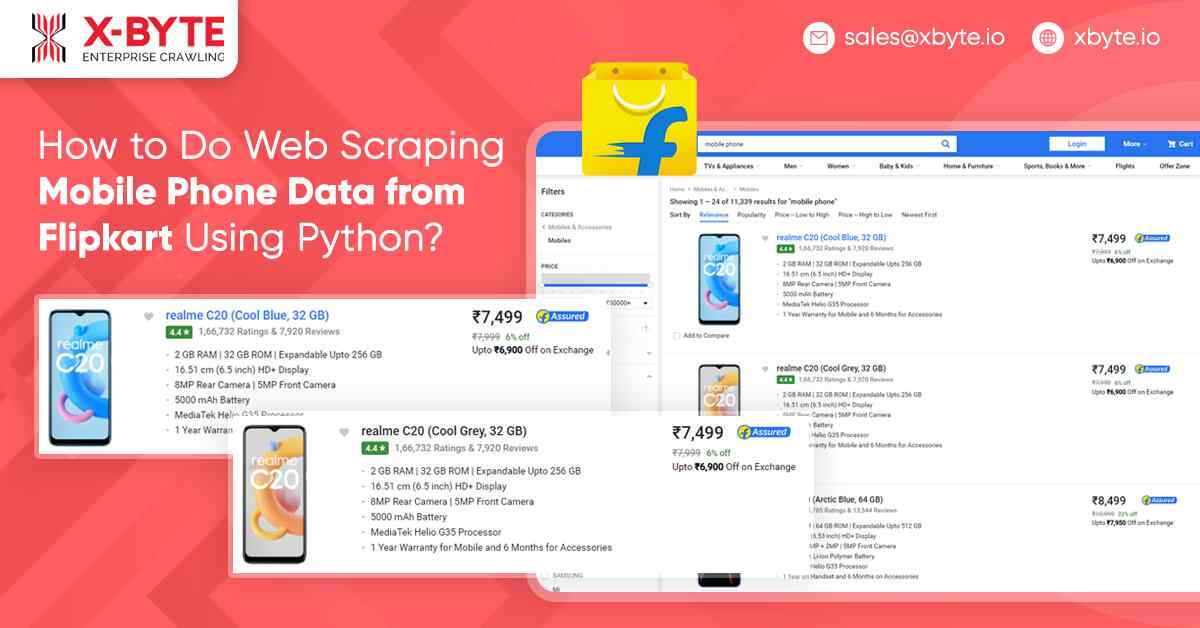
We’ll scrape — Models, stars, total reviews, total ratings, RAM, display, storage capacity, camera information, expandable options, processor, warranty, battery, and price data.
Inspect the Tags
Usually, the data is entrenched in tags. Therefore, we require to inspect a page to observe, under which tagging the data that we wish to extract is entrenched. For inspecting a page, just right-click on an element as well as choose ‘Inspect’.
We can utilize a tag & precisely class=_11fQZEK to have all the boxes or cards and after that we could easily find information from the boxes of all mobile phones.