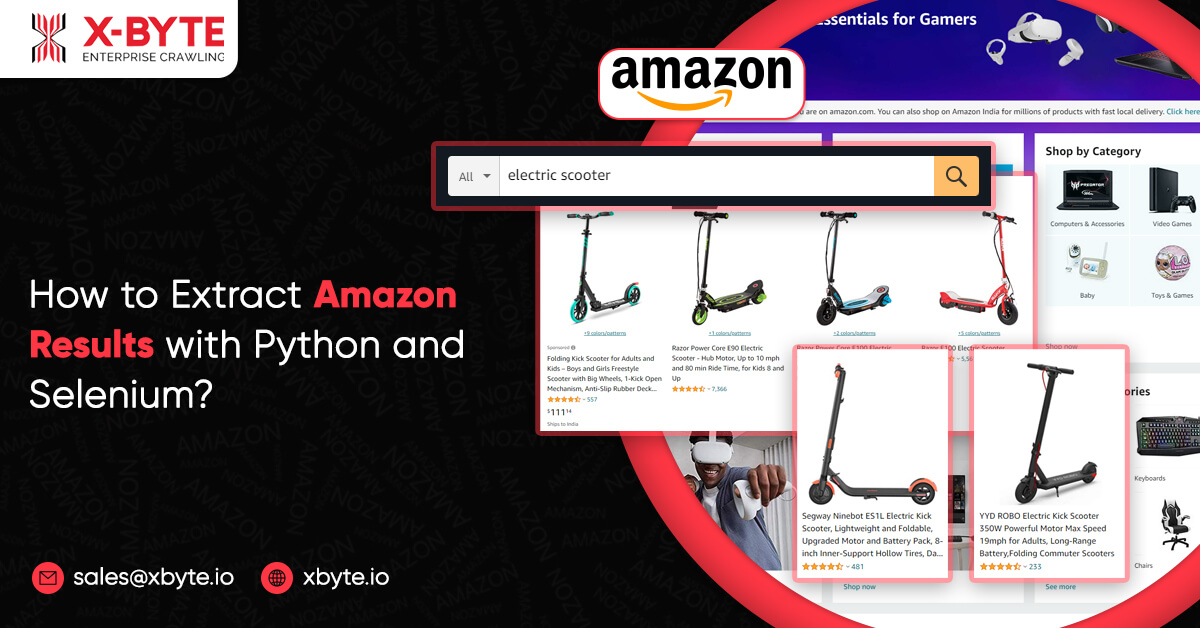
In this assignment, we will try at the pagination having Selenium for a cycle using pages of Amazon results pages as well as save data in a json file.
What is Selenium?
Selenium is an open-source automation tool for browsing, mainly used for testing web applications. This can mimic a user’s inputs including mouse movements, key presses, and page navigation. In addition, there are a lot of methods, which permit element’s selection on the page. The main workhorse after the library is called Webdriver, which makes the browser automation jobs very easy to do.
Essential Package Installation
For the assignment here, we would need installing Selenium together with a few other packages.
Reminder: For this development, we would utilize a Mac.
To install Selenium, you just require to type the following in a terminal:
pip install selenium
To manage a webdriver, we will use a webdriver-manager. Also, you might use Selenium to control the most renowned web browsers including Chrome, Opera, Internet Explorer, Safari, and Firefox. We will use Chrome.
pip install webdriver-manager
Then, we would need Selectorlib for downloading and parsing HTML pages that we route for:
pip install selectorlib
After doing that, create a new folder on desktop and add some files.
$ cd Desktop
$ mkdir amazon_scraper
$ cd amazon_scraper/
$ touch amazon_results_scraper.py
$ touch search_results_urls.txt
$ touch search_results_output.jsonl
You may also need to position the file named “search_results.yml” in the project directory. A file might be used later to grab data for all products on the page using CSS selectors. You can get the file here.
Then, open a code editor and import the following in a file called amazon_results_scraper.py.
from selenium import webdriver
from webdriver_manager.chrome import ChromeDriverManager
from selenium.common.exceptions import NoSuchElementException
from selectorlib import Extractor
import requests
import json
import time
After that, run the function called search_amazon that take the string for different items we require to search on Amazon similar to an input:
def search_amazon(item):
    #we will put our code here.
Using webdriver-manager, you can easily install the right version of a ChromeDriver:
def search_amazon(item):
    driver = webdriver.Chrome(ChromeDriverManager().install())
How to Load a Page as well as Select Elements?
Selenium gives many methods for selecting page elements. We might select elements by ID, XPath, name, link text, class name, CSS Selector, and tag name. In addition, you can use competent locators to target page elements associated to other fundamentals. For diverse objectives, we would use ID, class name, and XPath. Let’s load the Amazon homepage. Here is a driver element and type the following:]
driver.get('https://www.amazon.com')
After that, you need to open Chrome browser and navigate to the Amazon’s homepage, we need to have locations of the page elements necessary to deal with. For various objectives, we require to:
- Response name of the item(s), which we want to search in the search bar.
- After that, click on the search button.
- Search through the result page for different item(s).
- Repeat it with resulting pages.
This search bar is an ‘input’ element getting ID of “twotabssearchtextbox”. We might interact with these items with Selenium using find_element_by_id() method and then send text inputs in it using binding .send_keys(‘text, which we want in the search box’) comprising:
search_box = driver.find_element_by_id('twotabsearchtextbox').send_keys(item)
After that, it’s time to repeat related steps we had taken to have the location of search boxes using the glass search button:
To click on items using Selenium, we primarily need to select an item as well as chain .click() for the end of the statement: